.png?width=200&height=52&name=fedelta-pos-logo%20(1).png)
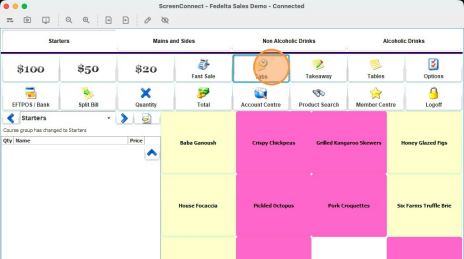
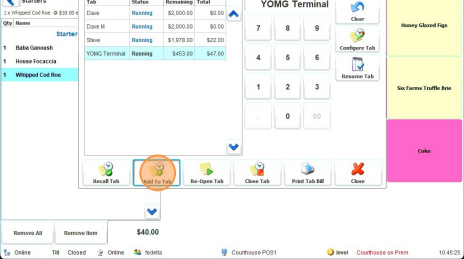
1. Locate the tabs option in Fedelta (this is also located in Options > Orders
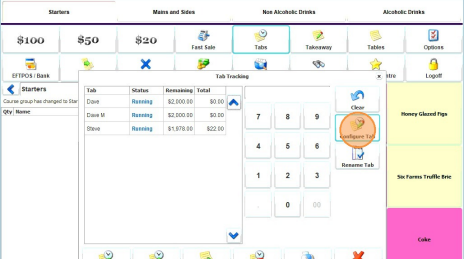
2. Click on "Configure Tab" to create a new tab
3.Enter in a 3. Tab Name, dollar limit, and if desired a start and end time of the tab.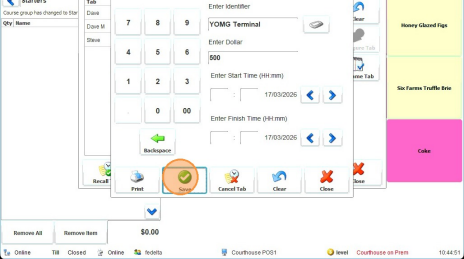
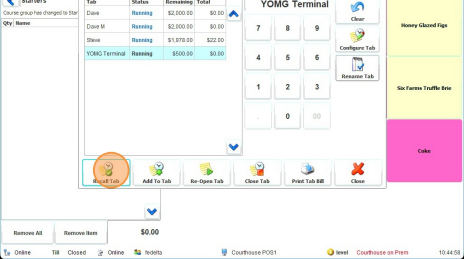
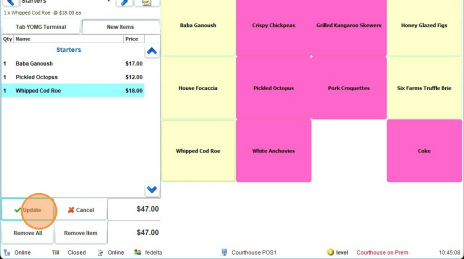
5.Enter the items you wish to add to the tab and then hit "update" to send those items to the kitchen/charge to the tab.
-
Tip! You can close the tab, and print the tab bill from the tabs screen. To pay the tab, just open the tab as if you were going to charge something to the tab, then process the payment by pressing the total button or another tender type, just like you would for a fast sale.