.png?width=200&height=52&name=fedelta-pos-logo%20(1).png)
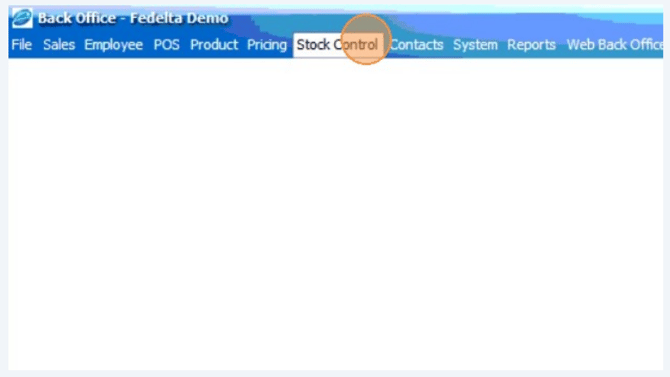
1 Click "Stock Control menu"
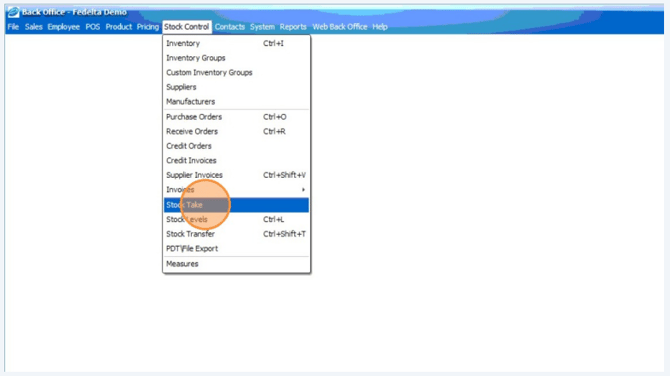
2 Select "Stock Take"
Stock Take Creation
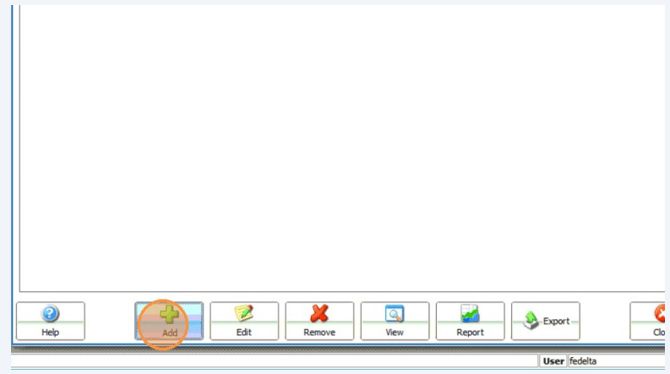
3 Once in the Stock take click on "add" to start a new stock take
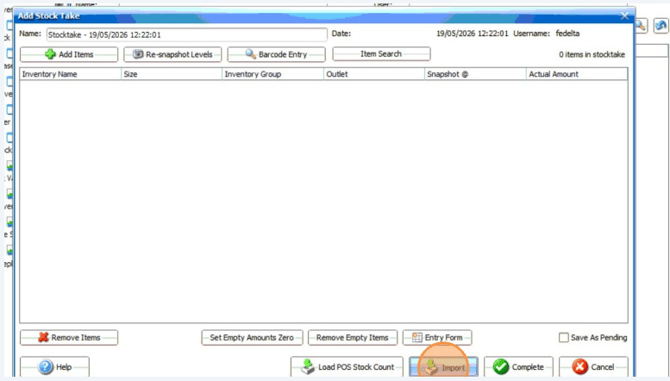
4 1. Name your Stock take
2. Click on "import" to import the file that you transferred from your Datalogic scanner to the PC you are working on.
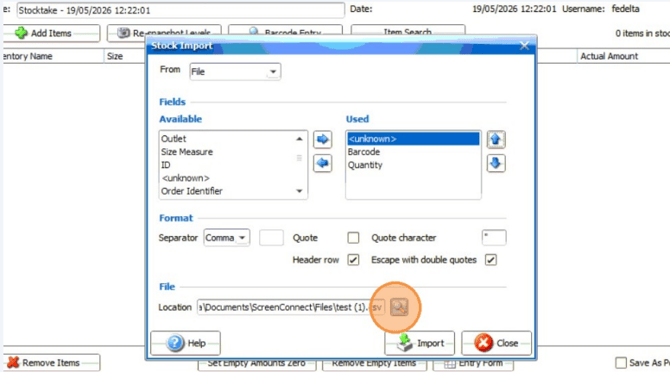
Field Mapping and File Selection
5 Map the available fields to used fields in this exact order. 1. Unknown (this is the line number in the CSV file from the scanner that we can ignore) 2. Barcode 3. Quantity 4. Click on the search button to find the file you transferred to the PC that you wish to import into the stock take
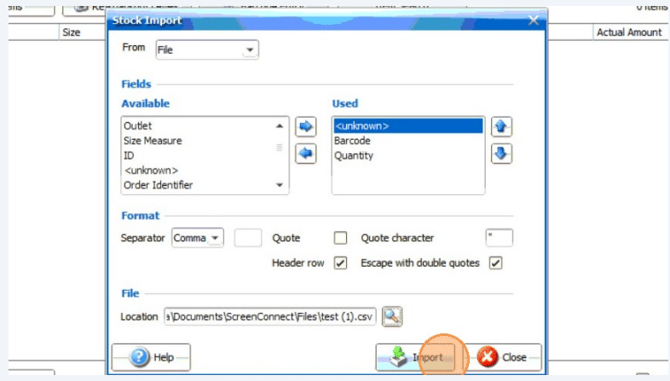
Import Execution
6. Click "Import"
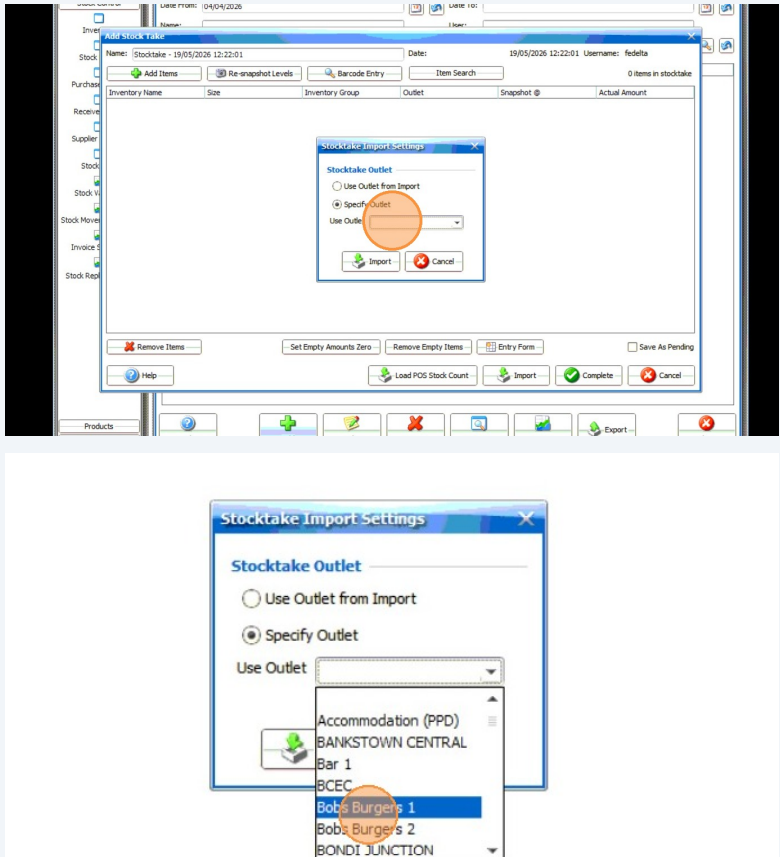
7 Select "Specify Outlet"
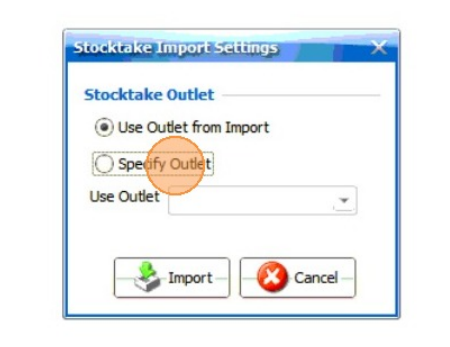
8 Select the outlet you wish to import the stock against.
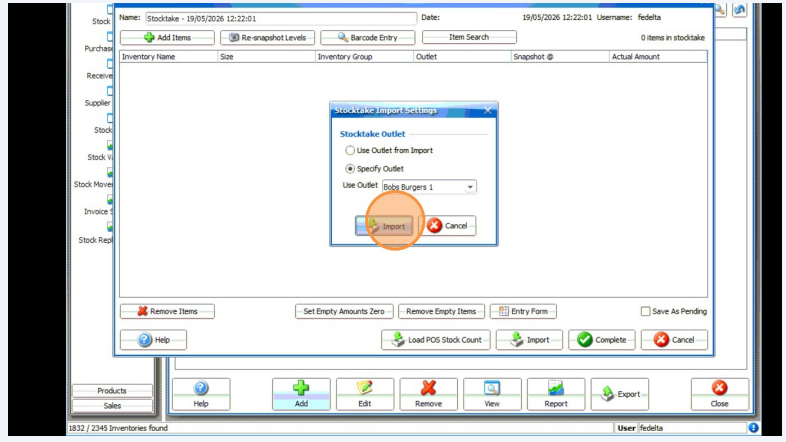
9 Click "Import" to finalise
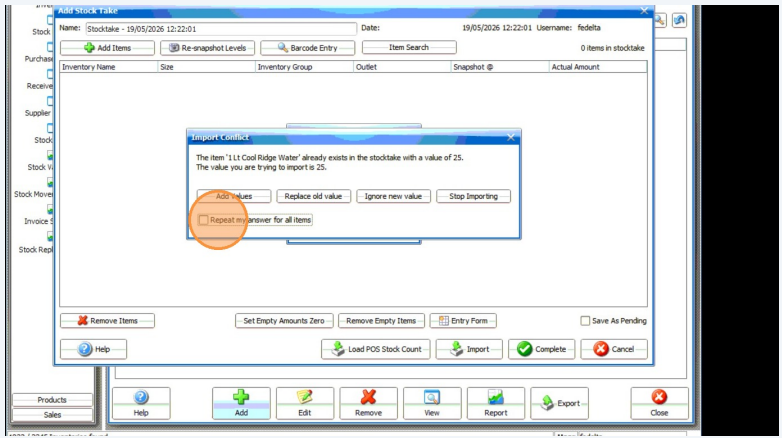
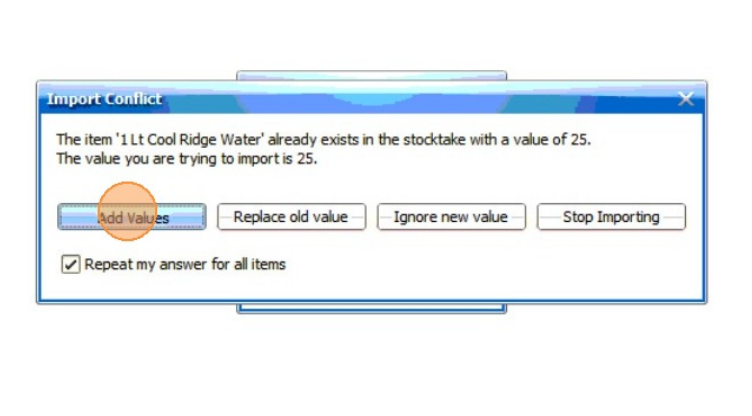
10 If "multiple values import conflict" message appears, you may have double-counted a product. Consolidate these by adding the values together by clicking "add values"
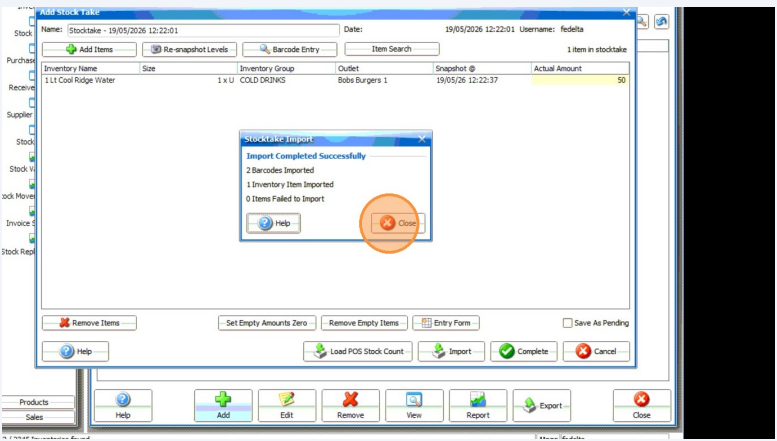
11 You have successfully added in your counts into your Stock take!