.png?width=200&height=52&name=fedelta-pos-logo%20(1).png)
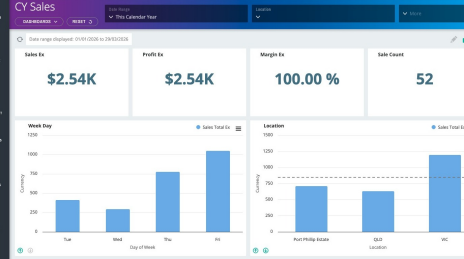
1 Navigate and login to your Fedelta Backoffice
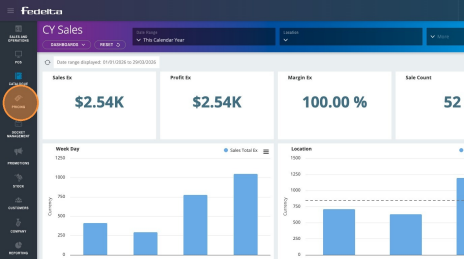
2 Click "Pricing"
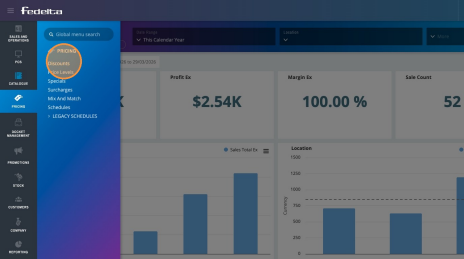
3 Click "Discounts"
4 Click "Add Discount"
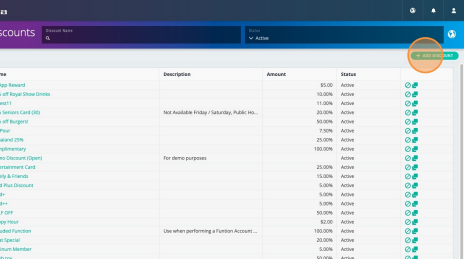
5From this screen you can create your discount, by giving it a name (the name will appear on the customer tax invoice).
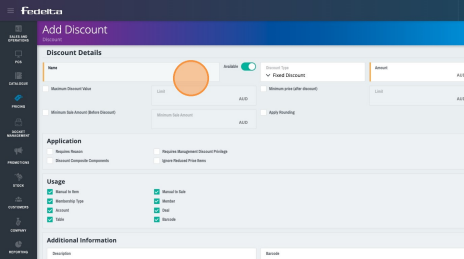
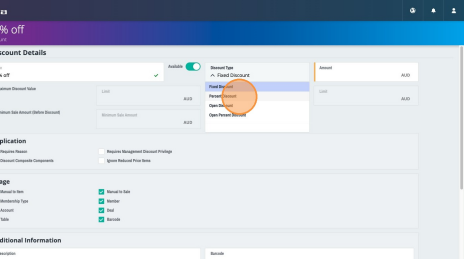
6 Select the appropriate discount type from the following options:
- Fixed Discount: Applies a predetermined currency amount reduction to a specific product or the total sale.
- Percentage Discount: Deducts a fixed percentage from the price of an item or the overall transaction.
- Open Discount: Provides the user with the flexibility to manually enter a specific dollar amount to be discounted at the time of sale.
- Open Percentage Discount: Allows the user to manually input a custom percentage to be deducted from the total.
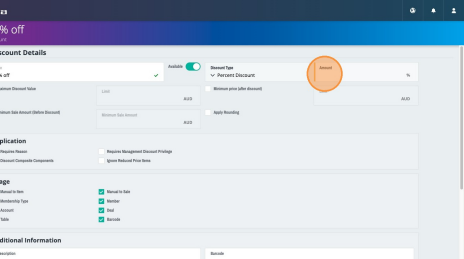
7 Place the $ or % discount value here
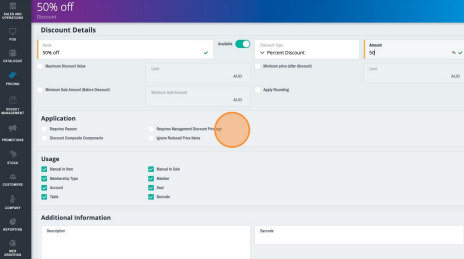
8 Discount Applications and Configurations
You can define specific parameters and conditions for the application of discounts. Configurable usage limits include:
-
- Maximum Discount Value: Sets a cap on the total discount amount allowed.
- Minimum Sale Amount: Establishes the required subtotal before a discount can be applied.
- Minimum Post-Discount Price: Ensures the final price of an item does not fall below a specified threshold.
- Rounding Rules: Allows for the automated rounding of discounted totals.
Requirements and Advanced Settings
In addition to value constraints, you can configure the following operational requirements:
-
- Reason Codes: Require staff to provide a justification for applying a manual discount.
- Access Privileges: Restrict discount capabilities to specific access roles, such as management.
-
- Composite Product Eligibility: Enable or disable the ability to discount bundled or composite items.
- Exclusion Rules: Automatically ignore items that already have a reduced price, such as promotional specials.
For information regarding additional discount configurations, please contact our support team for further assistance.
-
Note: After selecting "Add Discount," the configuration will synchronize with all POS terminals within approximately 30 seconds. Once the sync is complete, the discount can be applied to both individual products and total sales transactions.