.png?width=200&height=52&name=fedelta-pos-logo%20(1).png)
1 Navigate and login to your Fedelta Backoffice
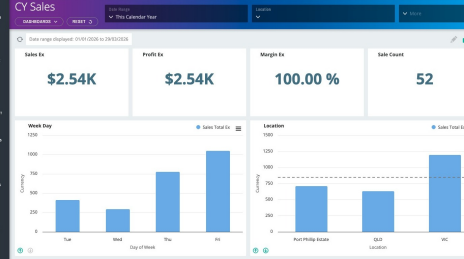
2 Click "Catalogue"
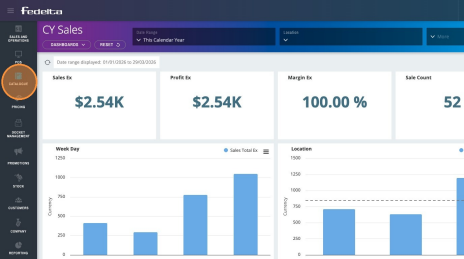
3 Click "Product Containers"
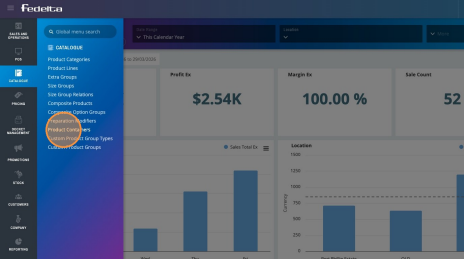
4 Click "Add Product Container"
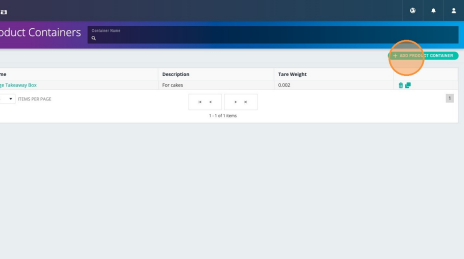
5 Add a name for your product container (eg. Small container, small cup")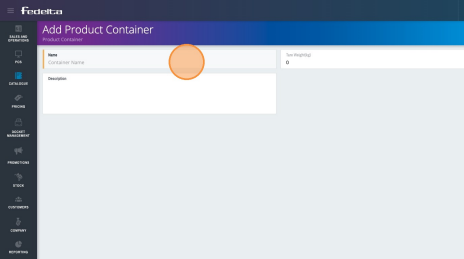
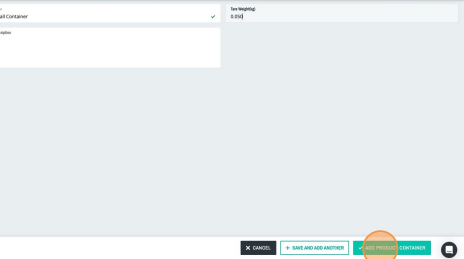
6To ensure accurate measurements, input the container’s tare weight as a decimal fraction of a kilogram (for example, enter 0.05 to represent 50g). Once the weight is specified, simply click the "Add Product Modifier" button to save your changes.
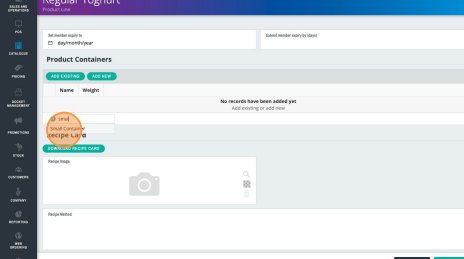
7To configure the tare weight for your weighted products, navigate to the Product Lines section and select the desired item. From there, scroll down to the Product Containers menu and assign the container you have recently created.
Best Practices: Configuring Weighted Products with Container Tare Options
When configuring a weighted product that utilizes a tare option via the Fedelta product containers, it is essential to verify your Point of Sale (POS) settings.
Configuration Requirements:
- Scale Settings: Ensure the POS is not configured to utilize the hardware scale’s native tare weight function.
- POS Functionality: The system must be configured to utilise the integrated POS tare function to ensure accurate weight calculations and data synchronisation.
-
Support Assistance:
If you are uncertain regarding your current POS configuration or require assistance adjusting these settings, please contact our support team for technical guidance.