.png?width=200&height=52&name=fedelta-pos-logo%20(1).png)
Inventory Access
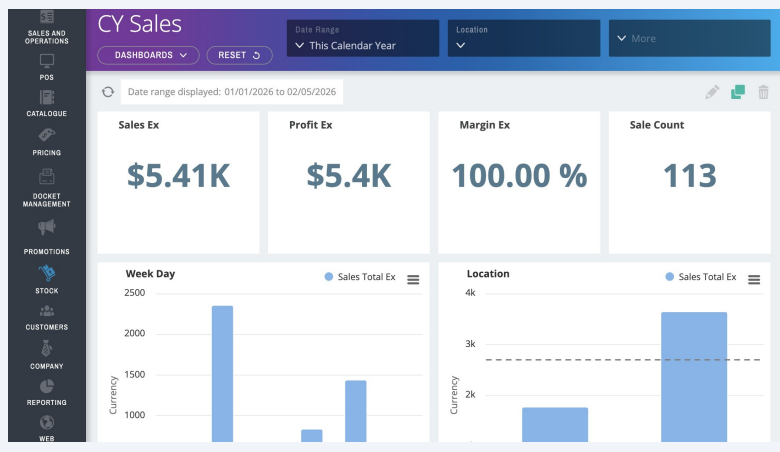
1 Navigate to your Fedelta Web Backoffice
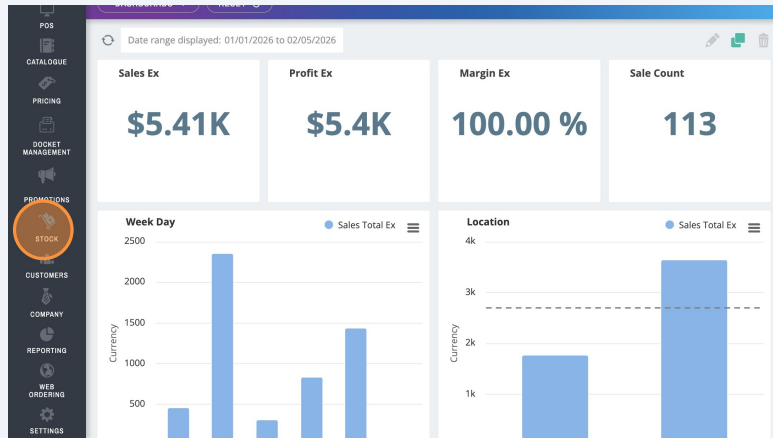
2 Click "Stock" in the sidebar menu
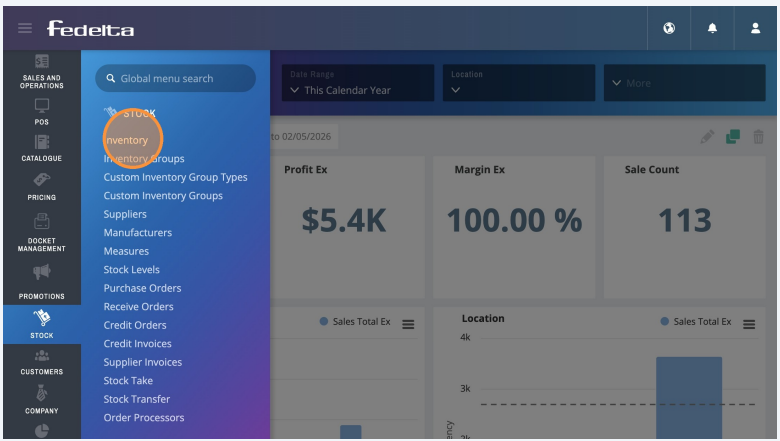
3 Select "Inventory" from the menu options
4 Click "ADD INVENTORY" button to add a new inventory item
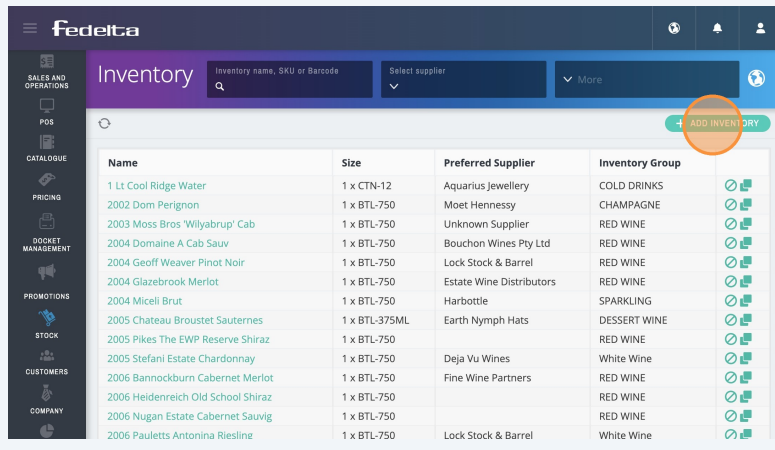
Inventory Item Details
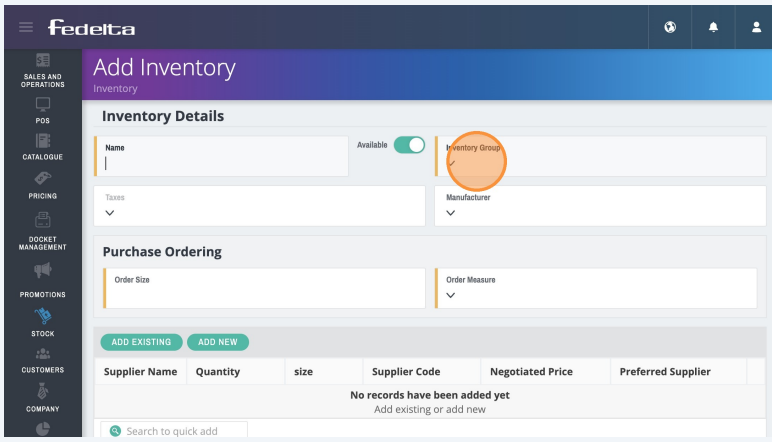
5 Add in an Inventory Name (this is appear on your stock take reports), Inventory Group (where it is grouped on your stock take reports), any applicable taxes.
Add in a 'Order Size'. An order size is how you typically order the product in. This is typically 1 x Bottle 750ml or something similar
Supplier Configuration
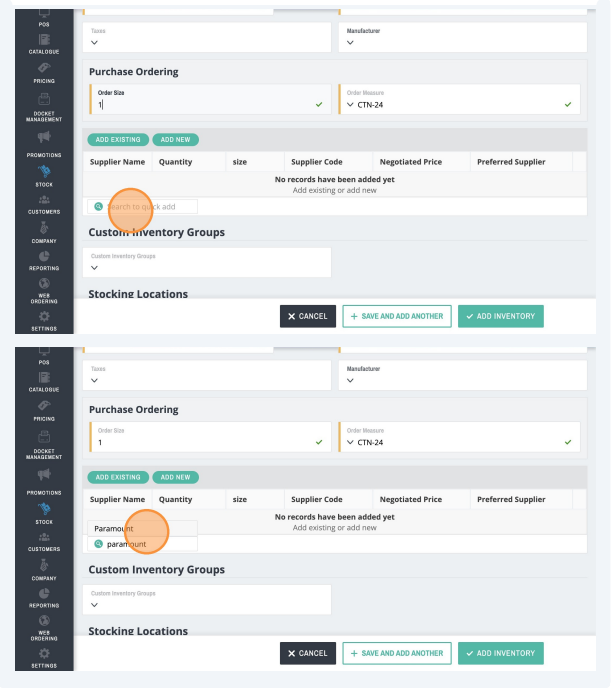
6 Add in a preferred supplier. Keep in mind you can add more than one supplier. Then add in the quantity and size you normally would order from that supplier.
-
Tip! : If you don't know the supplier code, just enter in the Inventory Name. Supplier codes can be changed later if suppliers can provide this information for your purchase orders
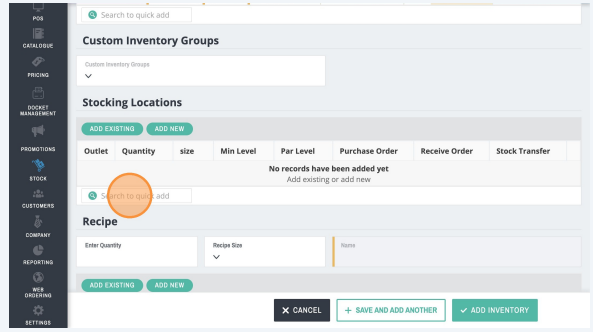
7 Stocking locations are where you intend to hold and count stock from. This might be multiple sites in a multi site operation or it might be the one location you have setup in Fedelta.
Finalise Record
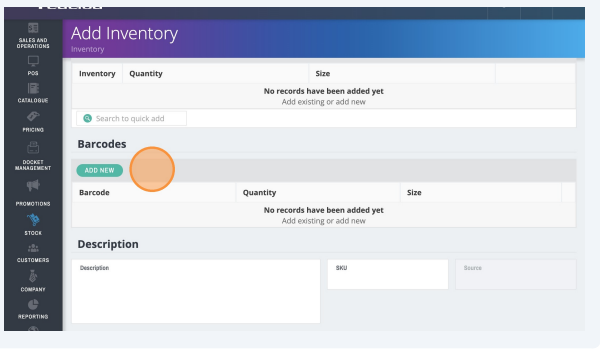
8 You can add barcodes for electronic stock take counts (optional), along with receipts and other fields. Once you are happy with your inventory item you can click "Add Inventory".