.png?width=200&height=52&name=fedelta-pos-logo%20(1).png)
System Access
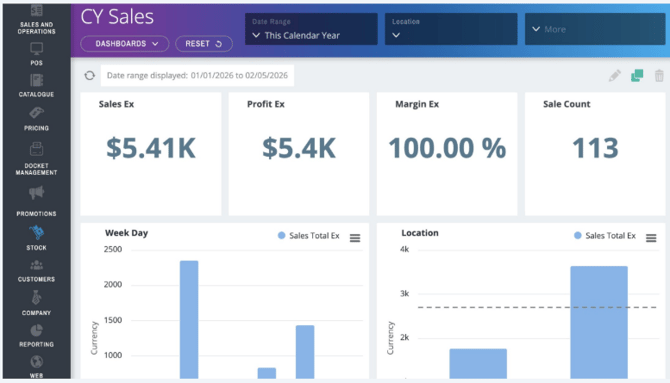
1. Navigate to your Fedelta Web Backoffice
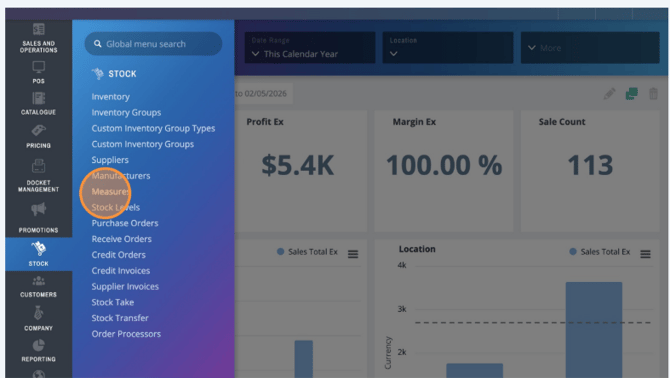
2. Click STOCK in the sidebar then Measures
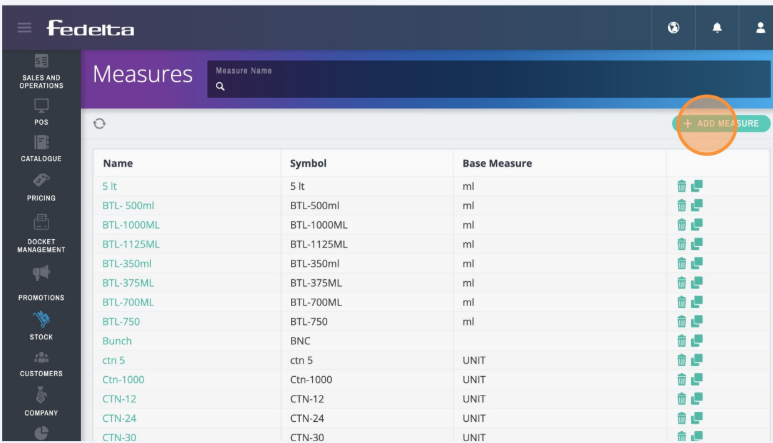
Measure Configuration
3 Click "Add Measure" to add a new measure.
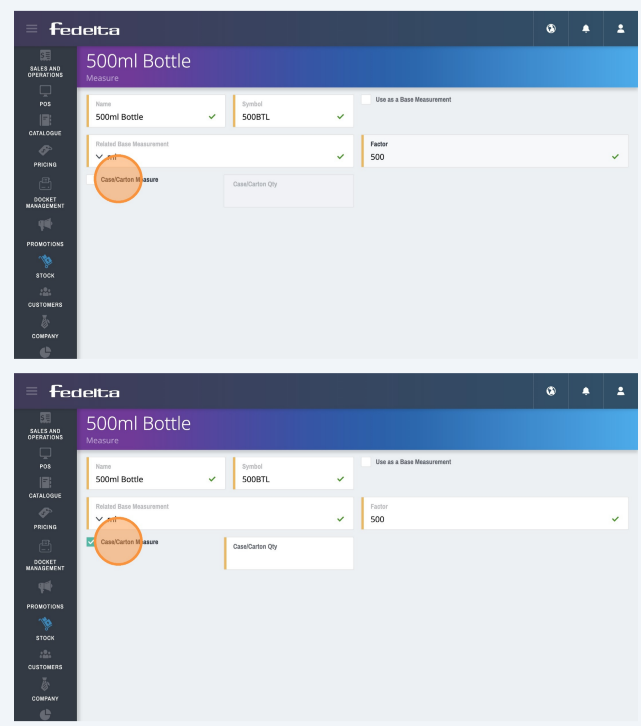
4. Create a name and Symbol for your measure. In this example we are going to add
a measure for 500ml Bottle.
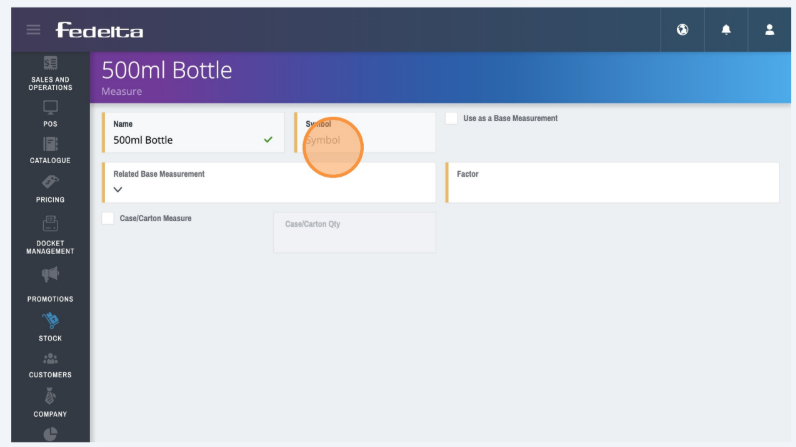
5. Next we want to identify the base measure of your new custom measurement.
Click on "Related Base Measurement". In this example we will choose "ml".
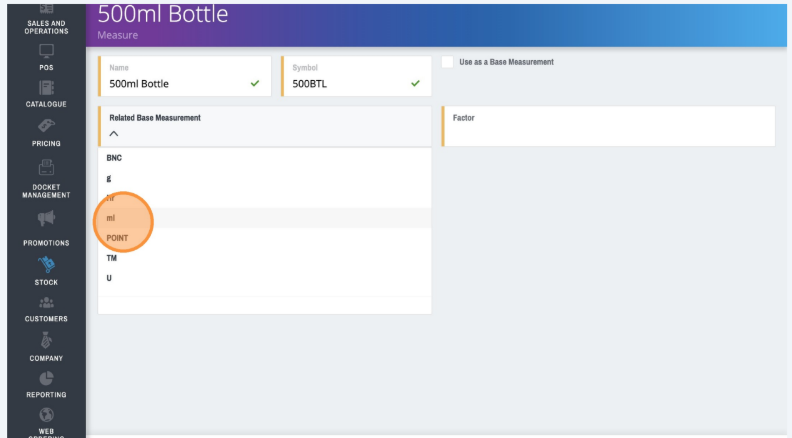
6. In the 'Factor' field, you then add in the multiplier of the base measure. In this
instance for a 500ml Bottle. You want the factor to be 500.