.png?width=200&height=52&name=fedelta-pos-logo%20(1).png)
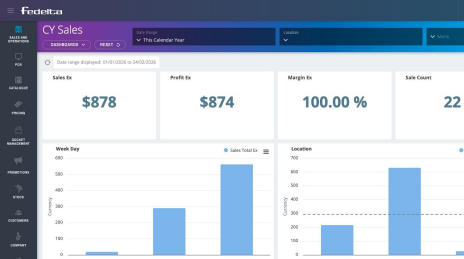
1. Navigate to your Fedelta web backoffice.
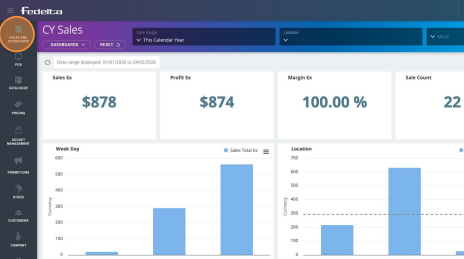
2. Click "Sales and Operations"
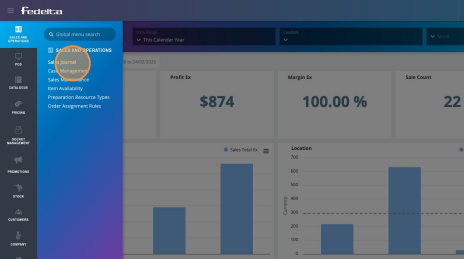
3. Click "Sales Journal"
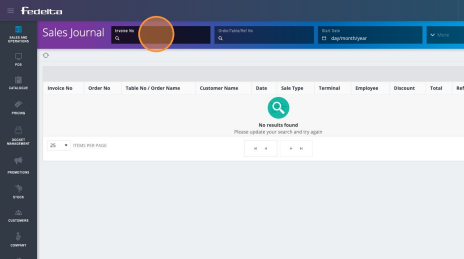
4. From here you can choose different filtering options such as Invoice number, order number, start date and more.
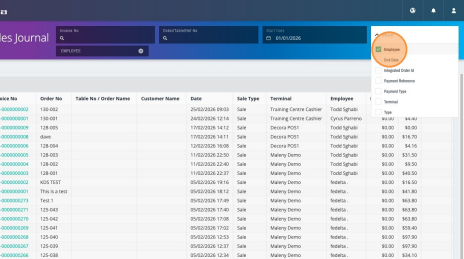
5. If you click on the more field on the right hand side there are further filtering options to choose from such as employee, payment reference, payment type, terminal and sales type
6. Once you find your sale you wish to investigate click on the invoice number to view the sale in total.
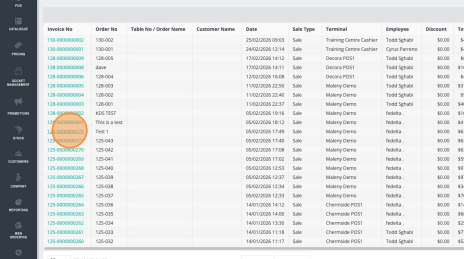
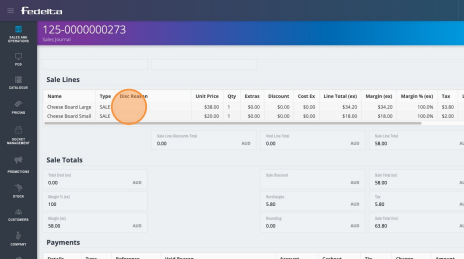
7. By clicking on the invoice number, this will provide details of the sale such as items ordered, tax and sale information and payment type. From this screen you can also generate a tax invoice in a PDF format by clicking on actions in the top right hand side of the screen and downloading the invoice.