.png?width=200&height=52&name=fedelta-pos-logo%20(1).png)
1 To access Purchase Orders, click on Stock Control > Purchase Orders
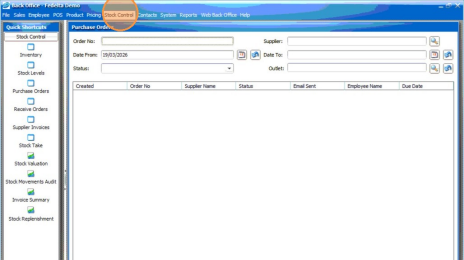
Initial Order Configuration
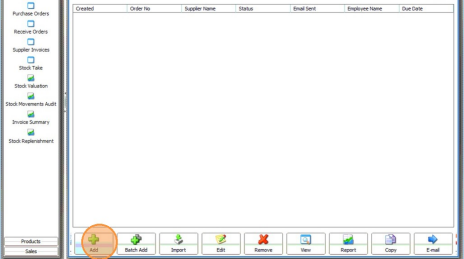
2 Click "Add" at the bottom of the window to start a new purchase order. Existing Purchase Orders will show on this screen also, allowing you to keep track of all pending, receivable and received purchase orders.
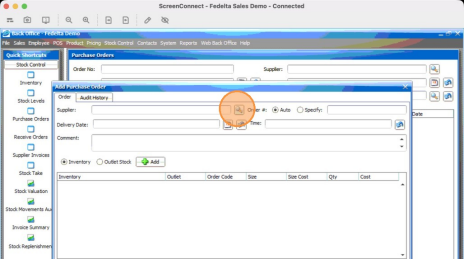
3 Once you click on the 'Add' button you will be presented with this Purchase Order screen. Click on the magnify glass button as shown below to find a supplier to create a purchase order for.
Inventory Item Selection
4 Once you have chosen your supplier. You can choose to add details to any of the following fields.
• Order number (auto specified or specify a manual order number
• Delivery Date and Time
• Any comments
Then to choose the inventory you wish to order press the 'add' button as shown below. This will pop up with a window with the filtered list of inventory available to order from this supplier.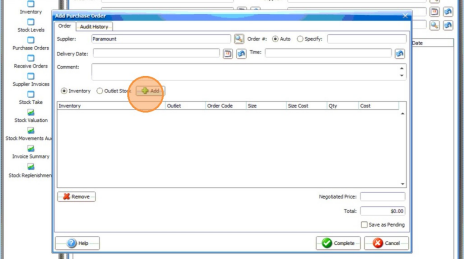
Outlet Assignment and Draft Save
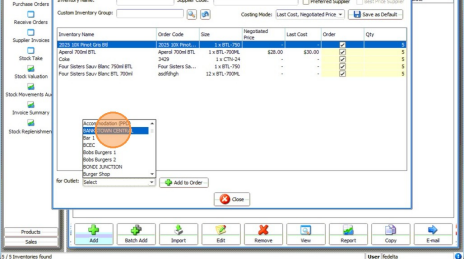
5 Enter the required quantity for each item in the inventory search list. Then choose the receiving outlet and click "add to order", and then
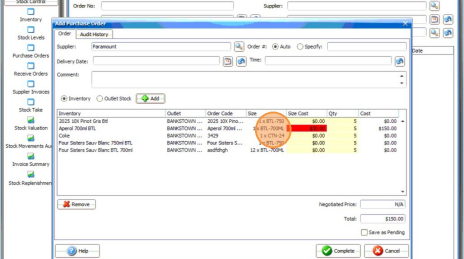
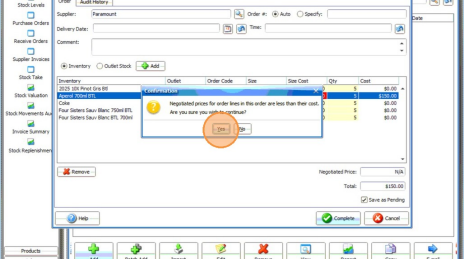
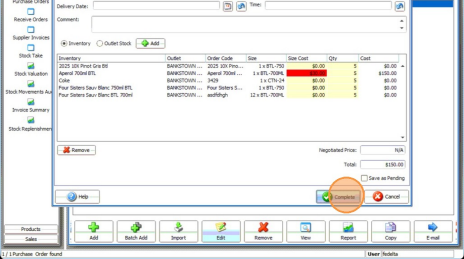
6 Any items highlighted in red is indicating that the cost price is above the negotiated price for that inventory item configured in Fedelta.
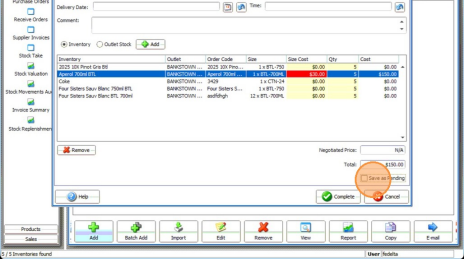
7Select the "Save as Pending" checkbox. If you wish to save the PO as a pending PO and return later to complete and submit to the supplier.
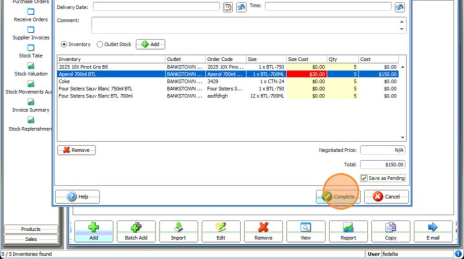
8 Click "Complete" to save the order as a draft.
9 Click "Yes" on the price confirmation dialog.
 Order Review and Finalization
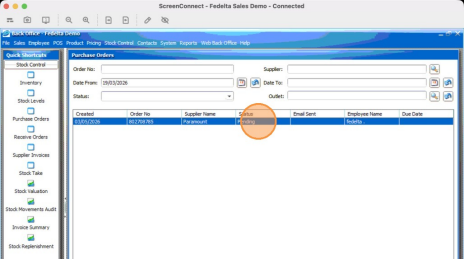
10 Select the pending purchase order from the main list.
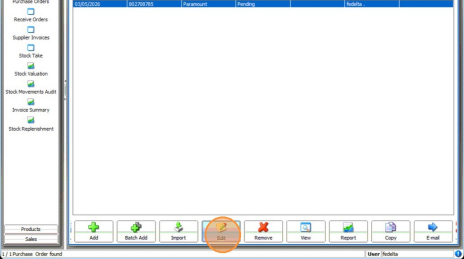
11 Click "Edit" to modify the pending order.
12 Click "Complete" to begin the finalization process.
13 Click "Yes" to acknowledge the price warning.
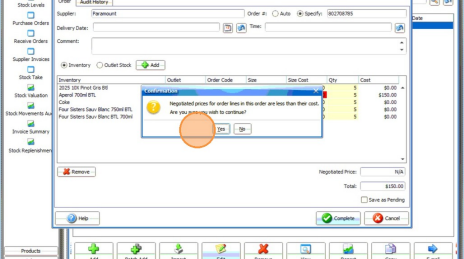
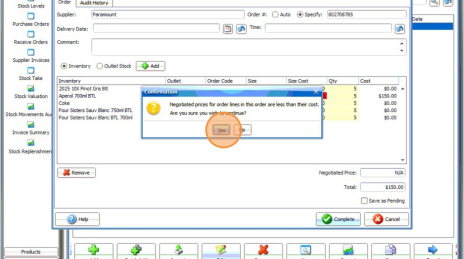
14 Click "Yes" to save the order as 'Receivable' and finish editing.
Tip!: You can download the PDF of the purchase order my click on Report on the main PO screen, and then saving the report as a PDF. Alternatively you can email the PO request directly to a supplier that is configured with an email address in Fedelta by clicking on 'Email' button on the main PO page