.png?width=200&height=52&name=fedelta-pos-logo%20(1).png)
1. To access the Options Panel within the Fedelta terminal, navigate to the Login screen and select Options. Alternatively, if the Float In and Float Out buttons are present on your function bar, you may select them directly from this interface.
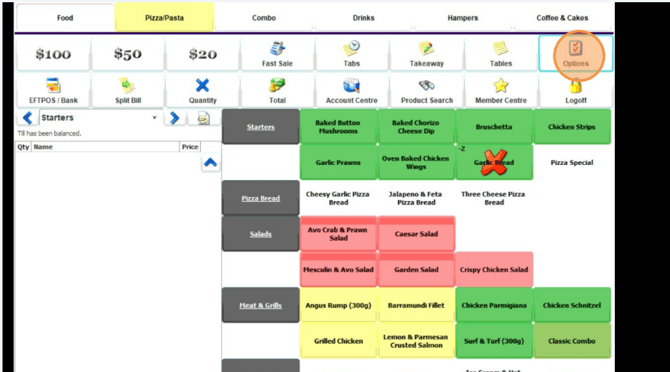
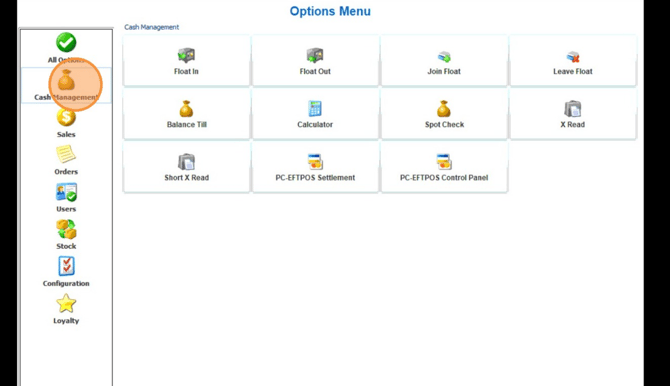
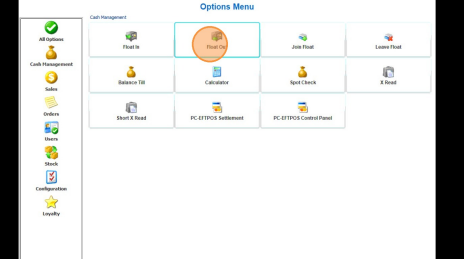
2. If the Float In and Float Out buttons are not present on the function bar, they can be accessed by selecting the Options button and navigating to the Cash Management section. The buttons will be located within this menu area.
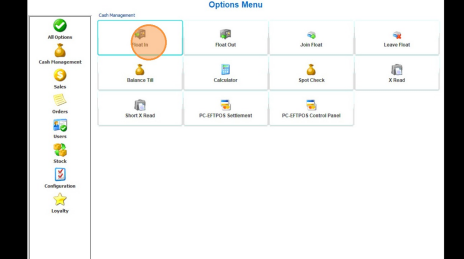
3. To float in, press on the Float In button.
4. Input the opening float balance currently held in the cash drawer. This figure represents the initial cash amount allocated to the drawer at the commencement of business operations.
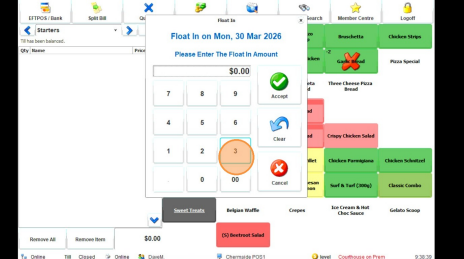
- Pro Tip: Once you hit accept you are then ready to start trading. The next part of the guide is assumed that you have finished your days trade and are ready to balance your terminal.
5. To float out the terminal, return to the options menu and select the "Float Out" option. Alternatively, if the "Float Out" shortcut is present on your function bar, you may initiate the command from that location.
6. This notification serves as an alert that there are outstanding balances on open tabs or tables. If you have verified these accounts and intend to proceed with the float-out process, please select "Yes" to continue.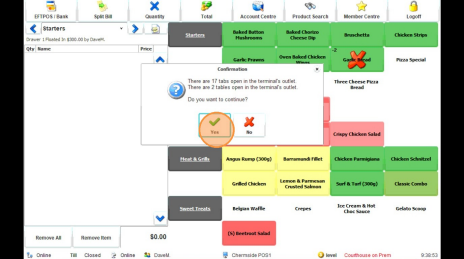
7. Ensure the cloasing float remains identical to the opening float established at the commencement of the business day. To achieve this, extract the corresponding amount from the cash drawer; this sum is strictly for float maintenance and must be excluded from the daily sales takings.
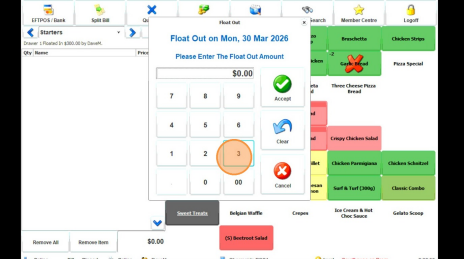
-
Pro Tip: At this stage, you may choose to remove the cash drawer from the terminal and perform the balancing procedure via Fedelta Backoffice. Alternatively, you may proceed with balancing the terminal directly from the Point of Sale (POS) by following the steps outlined below.
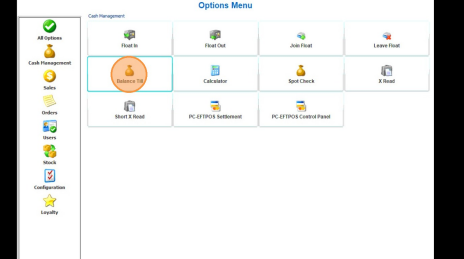
8. To balance the till, navigate to the Options menu, select Cash Management, and then select the Balance Till function.
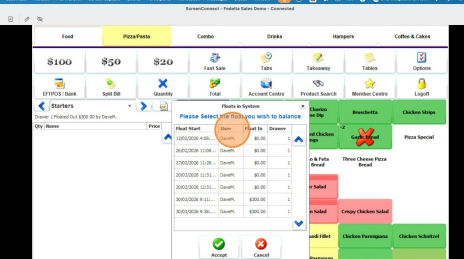
9. If this prompt appears, it indicates that there are multiple outstanding floats within your system that require balancing. In instances where only a single float is maintained—which is the standard configuration—this screen will not be displayed.
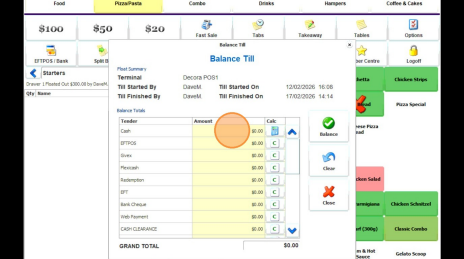
10. To balance your terminal, calculate the total value of all cash on hand and enter the sum into the designated field. Alternatively, you may select the calculator icon located on the right side of the amount tendered dialog box to itemize and total the specific currency denominations present in the till.
-
Pro Tip: When reconciling cash receipts, ensure the initial float amount is separated from the total. The opening balance should not be included in the calculation of net takings within this section.
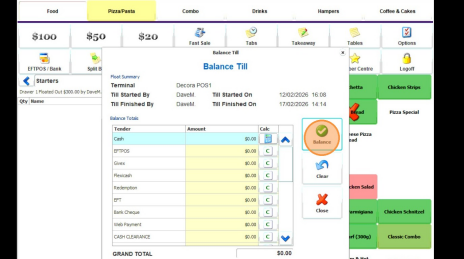
11. Upon completion of the balancing procerss, select the "Balance" option. If an EFTPOS integration is active, the corresponding figures will automatically populate within the EFTPOS section of the balance screen.
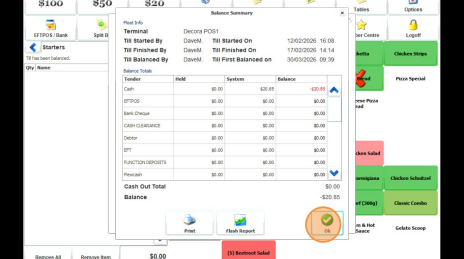
12. Once the balancing process is complete, the system provides a comprehensive overview of any identified variances. The data is categorized as follows:
- Held: This column represents the actual physical currency or total amount confirmed to be on hand.
- System: This column displays the expected amount calculated by the system, based on the total transactions completed during the specific trading period.
- Balance: This column indicates any variances detected between the Held and System amounts for each tender type.